Important Semester Information
General Information
Students are required to pay their fees upon registration or set up a payment plan. A student who has not paid their fees or set up a payment plan may be dropped from their classes. This prevents students from accumulating debt and ensures seat availability for others wanting to register for the course.
- Students meeting any of the following criteria are exempt:
- Active payment plan
- Dual enrollment students (K–12)
- Receiving financial aid
- Verified military-connected students using GI Bill ® benefit
For more information, please visit the Drop for Non-Payment FAQ.
Faculty are strongly encouraged to drop no-shows by the refund deadline, so the students are not assessed any fees but no later than the census deadline.
Enrollment fees are set by the State and are subject to change without notice and may be retroactive. All other fees are set by Ventura County Community College District Board of Trustees and are subject to change by Board Action.
For more information on enrollment fees, please click here.
General Information
Print and view your class rosters regularly to ensure all students attending classes are officially registered. It is critical that all students are officially registered prior to census.
Please be sure there are no students on your roster who have not been attending your class regularly.
The printable roster from the MyVCCCD roster is the official record of students registered in your course. Canvas is not the official record.
Most registration issues can be resolved early when dealt with prior to the deadline. If students are having issues registering for classes, please refer the student to Admissions & Records for assistance. We are available remotely via email or phone,.
California Virtual Campus (CVC)
Ventura College will be going live on January 18th (tentatively) as a teaching campus for CVC. This will allow any student enrolled at any community college in CA to enroll in online classes at VC seamlessly. No application for admission is required for the student to enroll in up to two classes. To accommodate and easily identify CVC students, they will appear on your roster with an enrollment status of RX.
Preferred Name
New students who included a preferred name on their application for admission will now have the preferred name included on your class roster. Continuing Students who have a preferred name that is different than their legal name can now have the preferred name added to their college records, by completing a form on venturacollege.edu/forms. The preferred name will appear on all rosters, schedules, Canvas and the portal.
Minor Designation on Roster
Effective Spring 2021, there is a notation on class rosters to indicate if an enrolled student is minor. The only indication is a small "t" sign.

General Information
A waitlist allows the student to wait for an open seat in a full class. Being on a waitlist does not guarantee enrollment in the class. If an enrolled student drops, the open seat may be filled by the next student on the waitlist in priority order. Payment within 24 hours is required to complete enrollment in the class.
Students are not officially enrolled until their name appears on your current class roster, available on the Faculty tab of the MyVCCCD portal. Canvas is not the official class roster.
Students will receive an automated notification to their Ventura College student email when they are dropped from the waitlist.
The waitlist process functions different for semester length classes versus short term classes. Please consult the start and end dates of your course carefully to determine which process applies.
Semester Length Classes
The waitlist process extends through the end of census and applies to both semester length and short term classes, which means students can still add their names onto waitlists for the 1st week of the semester. Add authorization numbers will not be needed until the beginning of the 2nd week of the semester.
As students drop classes and adjust their schedules during the first week and as you drop no-show enrolled students, their movement out of a class will open up a seat and the 1st waitlisted student will automatically be enrolled. This will then allow all other students on the waitlist to move up a position and create space for a new student to add their name to the waitlist.
Short Term Classes
Waitlists for short term classes close on the census date.
Canvas Access
Students that are waitlisted will have access to Canvas. When a student is waitlisted, they will show up on your roster as waitlisted.
They will only have access to Canvas as a waitlisted student until census is recorded for both semester length and short term classes.
This means if the student is not officially registered after the time allotted was a waitlist student, they will be automatically dropped from the waitlist and lose access to Canvas.
Please be advised the list of students in Canvas is not the official class roster. Waitlisted students will show up on your Canvas list, but this does not mean they are officially registered in the course.
Students that are waitlisted in your class will show up in Canvas as waitlisted.

Add Authorization Code Deadlines
Semester Length Classes
| Week 1 |
No code required. Students can register into open classes online. The waitlist process is running. |
| Week 2 |
A code is required. The waitlist process is NOT running. |
| Day Before Census |
Last Day to use a code. All adds must be completed prior to census. |
Short Term Classes
| Start of Registration Period Until Two Days Before Class Starts |
No code required. Students can register into open classes online. The waitlist process is running. |
| Day Before Class Starts |
Students will not be able to register online in waitlisted or closed classes. The waitlist process is NOT running. |
| Class Start Date |
A code is required. The waitlist process is NOT running. |
| Day Before Census |
Last Day to use a code. All adds must be completed prior to census. |
General Information
Add authorization codes are faculty permissions for a student to enroll in a class. They will not work if a student has time conflicts, is attempting to exceed their maximum number of units, has taken the class the maximum number of times allowed, or has not met the enforced prerequisites.
Add authorization codes are created the first Friday of the semester. Five (5) codes are created for each scheduled CRN and posted to the official roster. The codes are unique to each CRN, non transferrable, and can only be used once. The add authorization codes are valid up until the day before census.
Add authorization codes, if given, must be given to students in order of their priority on the waitlist. If you have no waitlist or if you have codes left after accommodating all waitlisted students, you are free to give the remaining codes to any student who requests one.
Students are not required to be on the waitlist to add a course with an add authorization code, but priority must be given to those students on the waitlist.
Requests for additional add authorization codes must be submitted through the division dean.
Student Registration and Payment
Students registering for a course with an add authorization code must pay the same day to finalize registration. If a student fails to pay the same day they register, they will be dropped from the class. Payment plan options may be available.
If students are waitlisted in a class and are now registering with an add authorization code, they must first drop the waitlisted course and re-add the same class. They will be prompted to enter the code. If students neglect to drop the class first, they will receive an error message saying they are trying to enroll in a duplicate course.
Preparation for Census
Click HERE to access a tutorial video
Census for full length, semester long, classes is the fourth Monday of the semester. Specific census dates are always listed in the academic calendar, online schedule of classes, and the official class roster in the MyVCCCD portal under the faculty tab. Reporting is due the day before census. All enrollment is "locked" as of census. Drops and certification of the roster must be done before the census date on your roster. The reporting deadline is also listed in red on the roster.
Each semester, the college is required to report an accurate count of it's students. Only those students who are officially enrolled and actively attending/participating in classes are eligible to included in the census count. Students not participating must be dropped. The college's funding for the entire semester is based on this census. Your role in this process is to certify that the enrollment in each of your classes is accurate.
The certify census button in the drop roster will be available until the day before census. The census certification button is not available until 10 days prior the census date of the class.
Note: In accordance with section 5.2.A.(1) of the faculty contract, census reporting requires a timely submission of census. In order to ensure no additional follow up is needed with the division dean, please make sure census reporting is complete before the deadline.
As an instructor, you must:
- Drop students who never came to class
- Drop students who stopped attending or participating in class
- Or if you have no students to drop, certify your class roster prior to the census date (no later than the last date of the census roster).
To do so, see this video tutorial or follow the instructions below.
Where to Find the Census Date on the Drop Roster
- The census date is shown as the start date of the W Roster for each class.
You can drop students or certify census during the time when either the Opening Day Roster or the Census Roster is open.
Example: MATH M15 (CRN 50159)
- Class starts: June 9, 2025
- Drop period: June 9 - 27, 2025
- Census Deadline: June 11, 2025 (Last day of the census roster)
- Census date: June 12, 2025
Before census date, you can use either the Opening Day Roster or the Census Roster to drop students. Depending on the day, the drop roster will show "Now" next to the active roster and the row will also be in bold. If you have no students to drop, you still need to certify your roster.
How to Certify Census
Step 1
Go to the Drop Roster Status page.
Click on the class row (not the title or CRN).
Step 2
If you have students who never attended or stopped attending, drop them first.
See How to drop students.
Step 3
If no students need to be dropped, you must still certify your roster prior to the census date of your class.
Scroll to the bottom of the page.
Click Submit when ready.
Step 4
You should see no students listed under "Selected to be Dropped" on the Drop Roster Confirmation page.
Step 5
Click Confirm to finish. You'll see a message at the top right saying the roster was reviewed successfully. You have certified your roster.
Step 6
Go back to the Drop Roster Status page. You should see the Last Submitted date populated with the current date for the CRN you previously updated.
Step 7
Repeat these steps for all your classes. Make sure each class shows a Last Submitted date for the Census Roster.
Automated Census Submission Reminders
If the deadline to certify census for any class is missed, an automated, daily reminder to submit documentation to the Admissions & Records Office will be sent through email. This is a district wide practice with each college providing the messaging and process for faculty submitting census documentation after the deadline.
General Student Information
It is the student's responsibility to drop class(es) by the appropriate deadline as shown on their Schedule/Bill, Online Schedule of Classes, and Academic Calendar. Students who remain enrolled after the refund deadline are not eligible for a refund and remain financially responsible for payment of fees even if they drop the class or are dropped by their instructor.
Census Drops
Each semester, the college is required to report an accurate count of it's students. Only those students who are officially enrolled and actively attending/participating in classes are eligible to included in the census count. Students not participating must be dropped by the faculty through the drop roster in the MyVCCCD portal under the Faculty Tab.
Drop in Error
Students who have been dropped in error may be eligible for a reinstatement with faculty approval, provided they have been in attendance prior to the census date. To reinstate a student, the faculty member will complete the Reinstatement Request in the MyVCCCD portal under the Faculty tab, by clicking on Faculty Forms - VC.
How to Drop Students
As an instructor, you must:
- Drop students who never came to class
- Drop students who stopped attending or participating in class
- Or if you have no students to drop, certify your class roster prior to the census date (no later than the last date of the census roster)
To do so, see this video tutorial.
Where to find the Census Date on the Drop Roster
- The census date is shown as the start date of the W Roster for each class.
- You can drop students through the last date on the W Roster.
- You can certify census during the time when either the Opening Day Roster or the Census Roster is open.
Example: MATH M15 (CRN 50159)- Class starts: June 9, 2025
- Drop period: June 9 - 27, 2025
- Census Deadline: June 11, 2025 (Last day of the census roster)
- Census date: June 12, 2025
Before census date, you can use either the Opening Day Roster or the Census Roster to drop students. As of the census date, you can use the W Roster to withdraw students with a "W" until the last day to withdraw. Depending on the day, the active drop roster will show "Now" and the row will also be in bold.
How to Drop Students (Step-by-Step)
Step 1
Go to the Drop Roster Status page.
Click on the class row (not the title or CRN) to launch Drop Roster Maintenance page.
Step 2
If no students need to be dropped, you should certify your roster.
Step 3
Pick the drop Action for each student you wish to drop.
For other students, leave the Action default as "None".
Step 4
Scroll to the bottom of the page.
Use arrows to check other pages if needed.
Click Submit when ready.
Step 5
You should see the students you picked listed under "Selected to be Dropped" on the Drop Roster Confirmation page.
Step 6
Click Confirm to finish.
You'll see a message at the top right confirming that the drop was successfully completed. You have dropped students.
Step 7
Click Back to Maintenance to return to the Drop Roster Maintenance page.
Or click Drop Roster Status to navigate back to Drop Roster Status page.
General Information
The final exam schedule is posted by the Office of Institutional Effectiveness, and is available on the Academic Calendar page.
Final Exam Conflicts
If a student needs to make alternate arrangements for their final exam schedule, they must talk to the faculty member.
Shorter Than Semester Length Classes | Late Start Classes
Late start or short classes that are scheduled to end before the last day of the semester will have final exams during the last scheduled class meeting.
Saturday | Sunday Classes
Final examinations for Saturday/Sunday courses will be held on the last day of class at the time the class normally meets.
Student Request for Early or Late Examination
Students requesting early or late exams may obtain a petition from the instructor or Division Office. Approved petitions are to be filed in the office of the Division Dean prior to the exam date.
Students should always refer to the class syllabus to confirm day/time of final examination, as the schedule may be subject to change without notice.
General Information
Final grades are due two working days after administering the final.
Grading Confirmation
When all your grades are successfully submitted for a CRN you will receive an email to confirm.

Last Date of Attendance
When entering grades, faculty must note a last date of attendance for any student assigned an "F" or "NP" grade. The online grade roster will return an error if an "F" or "NP" is awarded without the attendance date. Please note that an error will prevent all grades from being submitted until the required date is provided. If a student attended all semester and earned an "F", then the last date of attendance should be the last day of the term.
- The last date of attendance box for any "F" or "NP" grade issued will not appear until the "Submit" button is clicked. When the grade of "F" or "NP" is initially selected, the last date of attendance will say "None" until the "Submit" button is clicked.
- The date must be entered in the following format: mm/dd/yyyy (i.e. 05/19/2021).
- A last date of attendance is not required for "W"s. Please ignore the last date of attendance field for "W"s.
Changing a Grade
- If a students letter grade grade was entered incorrectly, you must submit an Grade Change Petition to adjust the grade.
- To change Incomplete Grades, see the Incomplete Grade Change section below.
- The Grade Change form is available in the MyVCCCD portal by clicking on the link Faculty Forms - VC.
-
The form is completely electronically routed. You will receive a few emails along the way. One when you submit the form and another when A&R is done processing the form.
-
"SP" Grade for Noncredit
Effective Fall 2020, all noncredit courses are graded.
- There is a new "SP" grading option to all noncredit classes. The "SP" evaluative symbol is defined as "Satisfactory Progress towards completion of the course (used for noncredit courses only and is not supplanted by any other symbol)."
- The "SP" designation shows that students are progressing and have acquired some of the skills and knowledge needed to achieve course outcomes but still have work to do. This "SP" grade is intended for students who came to class and learned something but didn't gain the competencies of that class. "SP" is considered a non-passing grade.
- All noncredit classes will have the option of an "SP" grade regardless of the grading mode of the noncredit class. The "SP" grade can be assigned to letter graded noncredit courses and Pass/No Pass graded noncredit courses.
- The "SP" grade is available in the final grade roster.
- An "SP" grade will not count towards a noncredit certificate until the student has registered for the course and achieved a "P" or letter grade (C or better).
Incomplete Grades
Incomplete Grade can be issued by faculty if the student has extenuating circumstances for not being able to complete the course.
-
It is up to faculty to determine if an Incomplete Grade is appropriate.
-
If students would like to request an Incomplete Grade, they contact the instructor of the course to discuss this option.
-
The instructor MUST complete an Incomplete Grade Agreement, available in Faculty Forms - VC, for every incomplete grade assigned.
-
Faculty must note in the agreement description, if Canvas work is required or if the student needs to access Canvas from a previous term.
-
Additionally, students might need to complete the Audit for Incomplete Make Up Work Petition on venturacollege.edu/forms.
-
The petition is needed if a student will need access to a class scheduled in an upcoming term as part of their Incomplete make up work.
-
-
Admissions & Records will coordinate with the Distance Education team to ensure the student is given the proper access.
-
Changing an Incomplete Grade
- When the student completes their Incomplete make up work, you must submit an Incomplete Grade Change to change the Incomplete default grade to the grade earned with the make up work factored in.
- The Incomplete Grade Change form is available in the MyVCCCD portal by clicking on the link Faculty Forms - VC.
-
The form is completely electronically routed. You will receive a few emails along the way. One when you submit the form and another when A&R is done processing the form.
-
- Students who do not complete the make up work within the one year allotted time, will be automatically assigned the default grade.
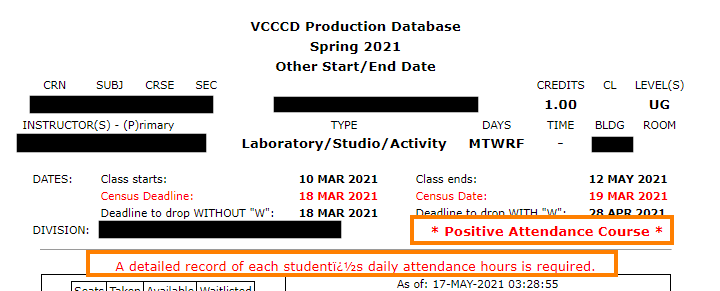
Determine if your class is Positive Attendance
When you view your roster in the MyVCCCD portal, it will say on the roster if the class is positive attendance.
Entering Hours and Submitting Rosters for Positive Attendance Classes
Detailed backup outlining DAILY Positive Attendance records are required for the annual audit. Detailed backup is no longer collected by division offices. Please upload your PDF or Excel or .CSV file via Positive Attendance Record Submission in addition to entering your per student total hours on the grade roster based on the following guidance:
- For positive attendance-type classes, enter the positive attendance hours on the final grade roster at the same time you submit your grades. Most classes are not positive attendance, so the HOURS column will say N/A.
- All students that enrolled in your course will appear on your final grade roster, even if they dropped the course. Please record all hours for all students, as apportionment is based on total posted hours. This includes any students that dropped with a “W” or “EW”.
The funding for positive attendance courses is solely based on the number of hours you collect and report, so it is very important that you keep a detailed record of the student’s attendance.
Setting up your Positive Attendance Roster
If you are teaching a positive attendance classes you need to:
- Keep a detailed, daily log of attendance in their classes for every student
- Report the cumulative hours attended for every student (even those who take a W) at the end of the semester when grading.
- Submit your detailed, daily log of attendance to Admissions & Records through the Positive Attendance Roster Submission link available in VC Faculty Forms.
Keeping a detailed, daily log of attendance can be accomplished through 1 of 2 methods.
- By keeping an excel spreadsheet generate from their excel roster. It is easier to understand and with some simple formulas, it can calculate automatically how many hours each student earned in the semester. I’ve attached two examples of faculty who keep attendance on the spreadsheet.
- Or, if the courses is a lab using Accudemia or CI Track for the student to check in and check out, IT can help the faculty export the attendance record from Accudemia or CI Track at the end of the term, and we will accept this file.
Hybrid Classes and Positive Attendance
If you are teaching a positive attendance class that is a mix of synchronous and asynchronous, you track both types of student activity. The asynchronous components can be tracked by assigning a reasonable number of contact hours to each assignment, and if the student submitted the assignment they earn the hours. A system for tracking the hours is at your discretion, but it must be reasonable and clearly noted on the roster.
How to Drop or Withdraw Students from Positive Attendance Classes
This article describes the steps for faculty to drop students from positive attendance classes using Banner 9 Self Service Drop Roster. Positive attendance classes are identified as "Total Roster" under "Roster Type". To drop or withdraw students from positive attendance classes, please follow these step-by-step instructions:
- Log into the MyVCCCD Portal and use the left navigation to select to Faculty Tools > Drop Rosters (New) or navigate directly to https://ssb.vcccd.edu/StudentSelfService/ssb/dropRoster/dropRosterPage
- When the Drop Roster page has loaded successfully, you should see something like this:
- To see your classes for the specific term, click on the down arrow next to "All Terms" at the top of the page. Select terms to filter the rosters for the term you pick.
- To further narrow down your search, you can also use the Search box to the right of Sections under the Current Drop Roster Summary to locate your class. Alternatively, you can click on the headers to sort as needed.
- If a roster type becomes available for update, the census roster type row will appear in bold. Under the Status column, the roster row would also show as "Now". If the class has not started or if the withdrawal deadline has passed, faculty members cannot open up the roster and the row would be "greyed out".
- Positive attendance classes are identified as "Total Roster" under Roster Type.
- For the roster you wish to update, click on the class row (outside of the Title and CRN links) for the class roster you wish to update.
- When the Drop Roster Maintenance page loads, you should see something like this:
- For each student you wish to drop or withdraw, click on the dropdown under Action and select the action.
- Leave the action defaulted to "None" for the other students you are not dropping or withdrawing.
- Scroll to the bottom of the page and click the blue "Submit" button.
- This would take you to the Drop Roster Confirmation page, something like this:
- Review the list of students and verify that you have the correct names.
- When ready, scroll down and click on the blue "Confirm" button.
- If your list of students to drop or withdraw is long, the process can take up to a minute or more. When the process is complete, you should see confirmation on the top right corner of your browser, something like this:
- You have submitted your drop or withdrawal. To return, you may click on "Back to Maintenance" button or the breadcrumb at the top of the page.
Sample Positive Attendance Rosters

Registration and Fees
Effective Summer 2020, noncredit students will register themselves for the course through their MyVCCCD portal.
View the How to Register Online pdf guide or How to Register Video for step by step instructions.
Noncredit students are not charged tuition on general fees when they register.
Census
Every faculty member, credit or noncredit, must complete census reporting.
Grading
Effective Fall 2020, all noncredit courses are graded. Noncredit courses do appear on a noncredit transcript and can be used towards state approved certificates of completion.
- There is a new "SP" grading option to all noncredit classes. The "SP" evaluative symbol is defined as "Satisfactory Progress towards completion of the course (used for noncredit courses only and is not supplanted by any other symbol)."
- The "SP" designation shows that students are progressing and have acquired some of the skills and knowledge needed to achieve course outcomes but still have work to do. This "SP" grade is intended for students who came to class and learned something but didn't gain the competencies of that class. "SP" is considered a non-passing grade.
- All noncredit classes will have the option of an "SP" grade regardless of the grading mode of the noncredit class. The "SP" grade can be assigned to letter graded noncredit courses and Pass/No Pass graded noncredit courses.
- The "SP" grade is available in the final grade roster.
- An "SP" grade will not count towards a noncredit certificate until the student has registered for the course and achieved a "P" or letter grade (C or better).
Positive Attendance
Most noncredit courses use the positive attendance accounting method. Faculty need to track detailed, daily attendance. At the end of the semester you will enter hours when you grade and submit the positive attendance roster through Faculty Forms - VC.
The new Registration Planner has been implemented. Students can use this new scheduling tool to select courses, list their availability, compare potential schedules, register for classes, drop courses and plan courses in advance.
View the How to Register Video for more information.
The Grade Sync tool within Canvas allows instructors to sync canvas final grades over to Banner. This article covers instructions to faculty on how to use this tool.
To sync final grades for your course(s):
- Grade Scheme: First, verify that you have selected a Grade Scheme for your course. Having a Grade Scheme is a prerequisite to using this tool. To set a scheme:
- In canvas, navigate to your course.
- Click the "Settings" link on the course navigation.
- On the "Course Details" tab, enable Course Grading Scheme
- Select the "VCCCD Default".
- Click the "Update Course Details" button.
- Grade Sync Tool: The Grade Sync tool will load a separate "grade roster" webpage.
- Click the "Submit Grades" link in the course navigation.
- A separate tab will open then run through a validation process and when done, the Grade Roster will open.
The Roster is divided into three sections:- Grades to Submit Grades that can be sent to Banner. In this section you can review/modify and submit grades.
- Grades Rolled to Academic History Grades that were previously entered and are no longer update-able.
- Ungradeable Records Students that are enrolled in the Canvas course but do not have an official enrollment recorded in Banner. It is recommended that if you have students in this section, check them against your official course roster from Self Service.
Reviewing/Finalizing Grades Make sure that all Canvas assignments have been graded. For students earning an F you will need the last date of participation (attendance). Last Date of Attendance is also Last Date of Participation in learning content. External tools like Publisher Assignments, Canvas Studio Quizzes, and New Quizzes won’t automatically show up as last date of participation, so you need to find that in the Grade Book.
If your course is a Positive Attendance course, you can submit grades from Canvas to Banner but please note that you are still required to use Self-Service-Banner to record hours.- Column Descriptions
- Selection Checkbox: Selecting the first checkbox will select all students on the roster. Helpful when sending all final grades at one time. You can also select individual students and send just send those specific grades.
- Canvas Grade: Displays Percentage of Canvas assignments that have been graded along with the Canvas grade for those graded assignments. If less than 100%, there are still ungraded items in the gradebook.
- Grade to be Submitted: Calculated final grade that will be sent to Banner. If column 2 shows 100%, then the grade displayed in column 3 will match.Grade can be modified as needed before sending to Banner.
If grade is an "F", you will be prompted to verify the Canvas calculated Last Date of Attendance. NOTE: this is the last date the student participated in learning content, not the last date they logged into Canvas. It is important to verify the last date of attendance because the Canvas Last Date of Attendance does not factor in participation with External Tools (publisher tools, Canvas Studio Quizzes, etc). If you need to adjust this date, simply click on the calendar icon, pick a new date and then click the "Set Date" button:
- Current Banner Grade: Displays grade that has already been posted to Banner.
- Click the "Submit Grades" link in the course navigation.
- Submitting Grades to Banner
- After reviewing/adjusting all Grades to be Submitted and viewing/setting any Last Day of Attendance dates, you can submit Canvas grades to Banner.
In column 1, select which student grades you want to submit (click the 1st checkbox to select all students).
Click the "Submit Grades " button
- A grade submission status will appear at the top-right of the screen. If all grades submitted successfully, you should see no errors in the submission status, the checkbox in column 1 will have changed to a green check and the grade (and last attendance date if needed) will be displayed in the last column:
- After reviewing/adjusting all Grades to be Submitted and viewing/setting any Last Day of Attendance dates, you can submit Canvas grades to Banner.
Training Video
General Notes
- You can use the grade sync tool as often as needed. If you submit an incorrect grade or last date of attendance, you can change those and resubmit as long as the change is resubmitted before the nightly Banner grade roll.
- The Canvas Grade Sync tool is completely optional.
- You can use Canvas Grade Sync and Self-Service-Banner interchangeably.
Support



How to Guides
Electronic faculty forms are available to you in the MyVCCCD portal. To access the forms follow these steps:
- Log into your MyVCCCD Portal
- Click on the Faculty Tab
- Find the first box, Faculty Self-Service
- About halfway down is a link, Faculty Forms - VC
- Click the link
- The link opens in a new tab with all the forms
- Click on the link of the form you want to fill out
- The form opens in a new tab.
- Fill out the form
- Click submit
- The form is electronically routed to all parties
- You receive an email confirmation for submission and when the form is approved by A&R
As an instructor, you must:
- Drop students who never came to class
- Drop students who stopped attending or participating in class
- Or if you have no students to drop, certify your class roster prior to the census date (no later than the last date of the census roster).
To do so, see this video tutorial or follow the instructions below.
Where to Find the Census Date on the Drop Roster
- The census date is shown as the start date of the W Roster for each class.
You can drop students or certify census during the time when either the Opening Day Roster or the Census Roster is open.
Example: MATH M15 (CRN 50159)
- Class starts: June 9, 2025
- Drop period: June 9 - 27, 2025
- Census Deadline: June 11, 2025 (Last day of the census roster)
- Census date: June 12, 2025
Before census date, you can use either the Opening Day Roster or the Census Roster to drop students. Depending on the day, the drop roster will show "Now" next to the active roster and the row will also be in bold. If you have no students to drop, you still need to certify your roster.
How to Certify Your Roster (Step-by-Step)
Step 1
Go to the Drop Roster Status page.
Click on the class row (not the title or CRN).
Step 2
If you have students who never attended or stopped attending, drop them first.
See How to drop students.
Step 3
If no students need to be dropped, you must still certify your roster prior to the census date of your class.
Scroll to the bottom of the page.
Click Submit when ready.
Step 4
You should see no students listed under "Selected to be Dropped" on the Drop Roster Confirmation page.
Step 5
Click Confirm to finish. You'll see a message at the top right saying the roster was reviewed successfully. You have certified your roster.
Step 6
Go back to the Drop Roster Status page. You should see the Last Submitted date populated with the current date for the CRN you previously updated.
Step 7
Repeat these steps for all your classes. Make sure each class shows a Last Submitted date for the Census Roster.
As an instructor, you must:
- Drop students who never came to class
- Drop students who stopped attending or participating in class
- Or if you have no students to drop, certify your class roster prior to the census date (no later than the last date of the census roster)
To do so, see this video tutorial.
Where to find the Census Date on the Drop Roster
- The census date is shown as the start date of the W Roster for each class.
- You can drop students through the last date on the W Roster.
- You can certify census during the time when either the Opening Day Roster or the Census Roster is open.
Example: MATH M15 (CRN 50159)- Class starts: June 9, 2025
- Drop period: June 9 - 27, 2025
- Census Deadline: June 11, 2025 (Last day of the census roster)
- Census date: June 12, 2025
Before census date, you can use either the Opening Day Roster or the Census Roster to drop students. As of the census date, you can use the W Roster to withdraw students with a "W" until the last day to withdraw. Depending on the day, the active drop roster will show "Now" and the row will also be in bold.
How to Drop Students (Step-by-Step)
Step 1
Go to the Drop Roster Status page.
Click on the class row (not the title or CRN) to launch Drop Roster Maintenance page.
Step 2
If no students need to be dropped, you should certify your roster.
Step 3
Pick the drop Action for each student you wish to drop.
For other students, leave the Action default as "None".
Step 4
Scroll to the bottom of the page.
Use arrows to check other pages if needed.
Click Submit when ready.
Step 5
You should see the students you picked listed under "Selected to be Dropped" on the Drop Roster Confirmation page.
Step 6
Click Confirm to finish.
You'll see a message at the top right confirming that the drop was successfully completed. You have dropped students.
Step 7
Click Back to Maintenance to return to the Drop Roster Maintenance page.
Or click Drop Roster Status to navigate back to Drop Roster Status page.
Late Add Requests are for students who were never registered in the course, but have been attending since before census. Students dropped for nonpayment were never officially registered and would need a Late Add Request.
Reinstatement Requests are for students who were officially registered and paid, but were dropped by accident - either by themselves or faculty.
Positive Attendance Rosters are now submitted directly into our document retention software, OnBase. Submit your roster through the link in Faculty Forms - VC. Submitting through the link also provides you with confirmation emails when the roster is accepted.
As an instructor, you can withdraw students who stopped attending starting on the class census date and can do so until the last day to withdraw. Withdrawn students will receive a "W" grade for the class.
Where to Find the Census Date on the Drop Roster
- The census date is shown as the start date of the W Roster for each class.
- You can drop students through the last date on the "W Roster".
- You can certify census during the time when either the Opening Day Roster or the Census Roster is open.
Example: ANAT M01 (CRN 50168)
- Class starts: May 27, 2025
- Drop period: May 27 - July 2, 2025
- Census Deadline: June 3, 2025 (Last day of the census roster)
- Census date: June 4, 2025
As of the census date, you can use the W Roster to withdraw students with a "W" until the last day to withdraw. When the W Roster is active, the drop roster will show "Now" and the row will be in bold.
How to Withdraw Students (Step-by-Step)
Step 1
Go to the Drop Roster Status page.
Click on the class row (not the title or CRN).
Step 2
Pick the "Withdraw" Action for each student you wish to withdraw.
For other students, leave the Action default as "None".
Step 3
Scroll down to the bottom of the page.
Use arrows to check other pages if needed.
Click Submit when ready.
Step 4
You should see the students you picked listed under "Students Selected to be Dropped" on the Drop Roster Confirmation page. Under Pending Registration, you should see "Withdraw".
Step 5
Click Confirm to finish. The process can take several seconds to complete. You should see confirmation in the top right confirming that the withdrawal was successful. You have withdrawn students.
Step 6
Click Back to Maintenance to return to the Drop Roster Maintenance page.
Or click Drop Roster Status to return to the Drop Roster Status page.
This knowledge base article explains the steps to look up important dates for Add, Drop and Census on the Banner 9 Self-Service Faculty Detail Schedule, similar to critical dates in the classic Instructor Schedule.
- In the Faculty Detail Schedule page, important date information can be accessed by clicking the 5-digit CRN number (e.g. 30001) under CRN. After you picked Term and CRN in the dropdown menus to bring up your selected course, the CRN can be found in the first Course section. Click on it. This will return a pop-up dialog box showing class details for your course.
- In the pop-up dialog box, scroll to the bottom of the left menu in the dialog box to locate Important Dates. Click on it to view important dates for the course.